

To show explanations for the numbers calculated in the Matrix Destiny Calculator, you must create content using the Matrix Documentation post type.
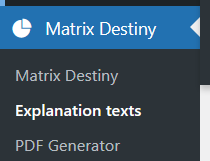
Adding Explanation Texts
- Go to Matrix Destiny → Explanation texts.
- Click Add New Section.
- Create one post per number, energy, or section.
- Enter a clear title and explanation text.
Program Explanations
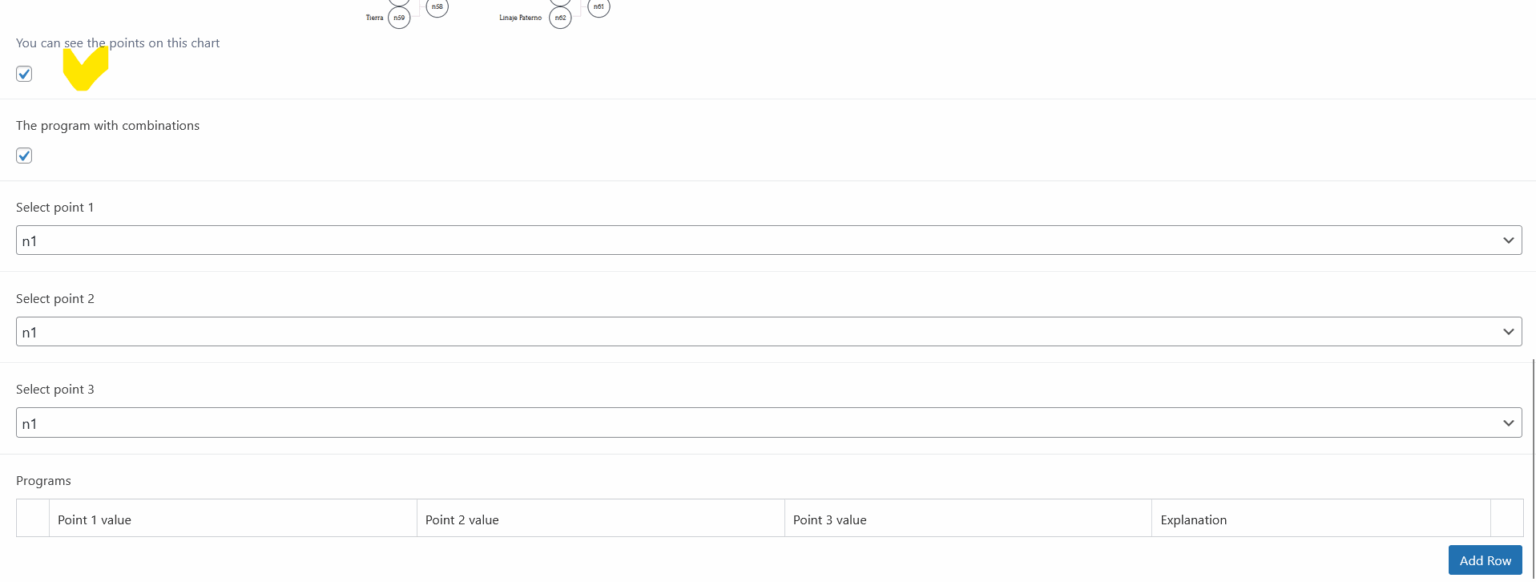
- Enable This is a program.
- Select the related points.
- Allow combinations if required (e.g. Hidden Talents).
- Add the program explanation text.
Non-Program Explanations
- Switch to the second tab.
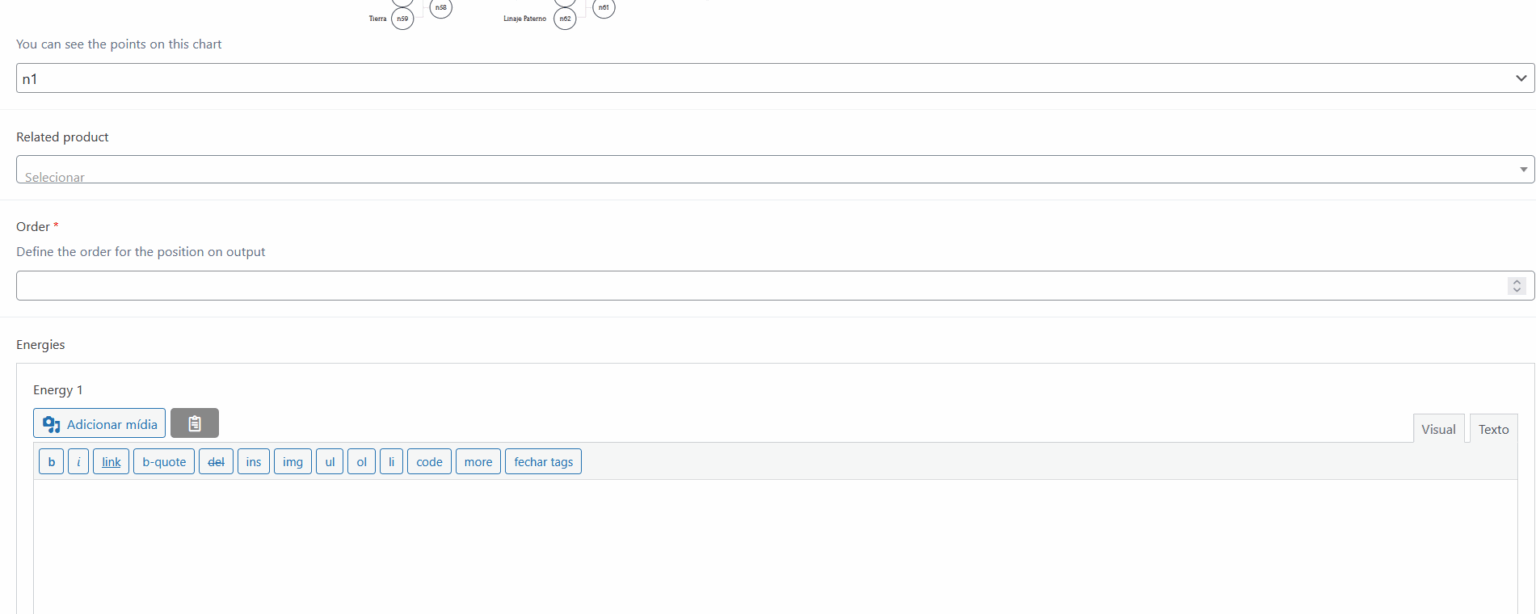
- Add explanation for each energy.
- Select the corresponding point.
Paid Explanations & Ordering
- Select a product to make this section paid.
- Set the order to control display sequence.
- Enable the checkbox if this is an energy of the year.
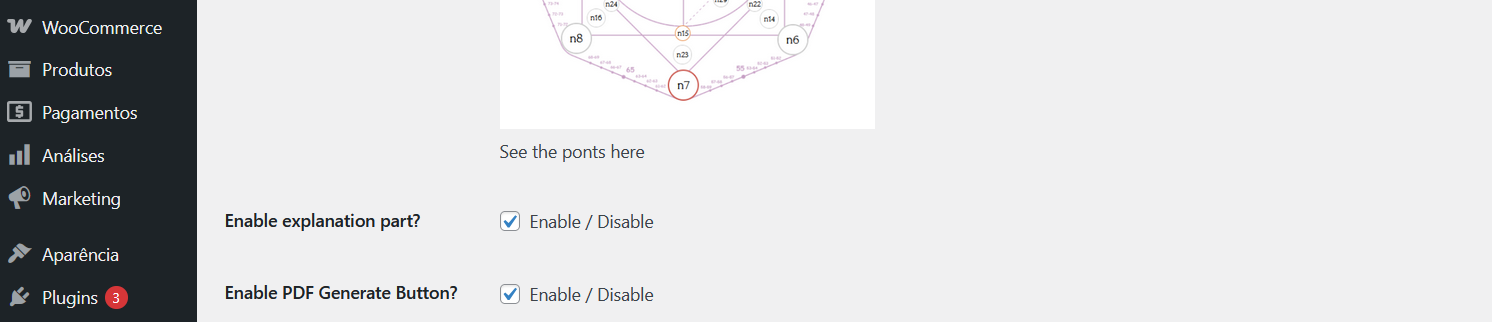
⚠️ Make sure the Explanation section is enabled in the plugin settings, or the content will not appear on the front end.
You can restrict access to certain explanation sections and make them available only to paying users.
- Works with WooCommerce products or subscriptions.
- Free and paid explanations can coexist.
- Ideal for professional numerology services.
Paid Explanations & Ordering
- Select a product to make this section paid.
- Set the order to control display sequence.
- Enable the checkbox if this is an energy of the year.